
Telegram auto-download settings, explained
By Rojitson N. · Builder, TG Downloader · Updated 6 October 2026
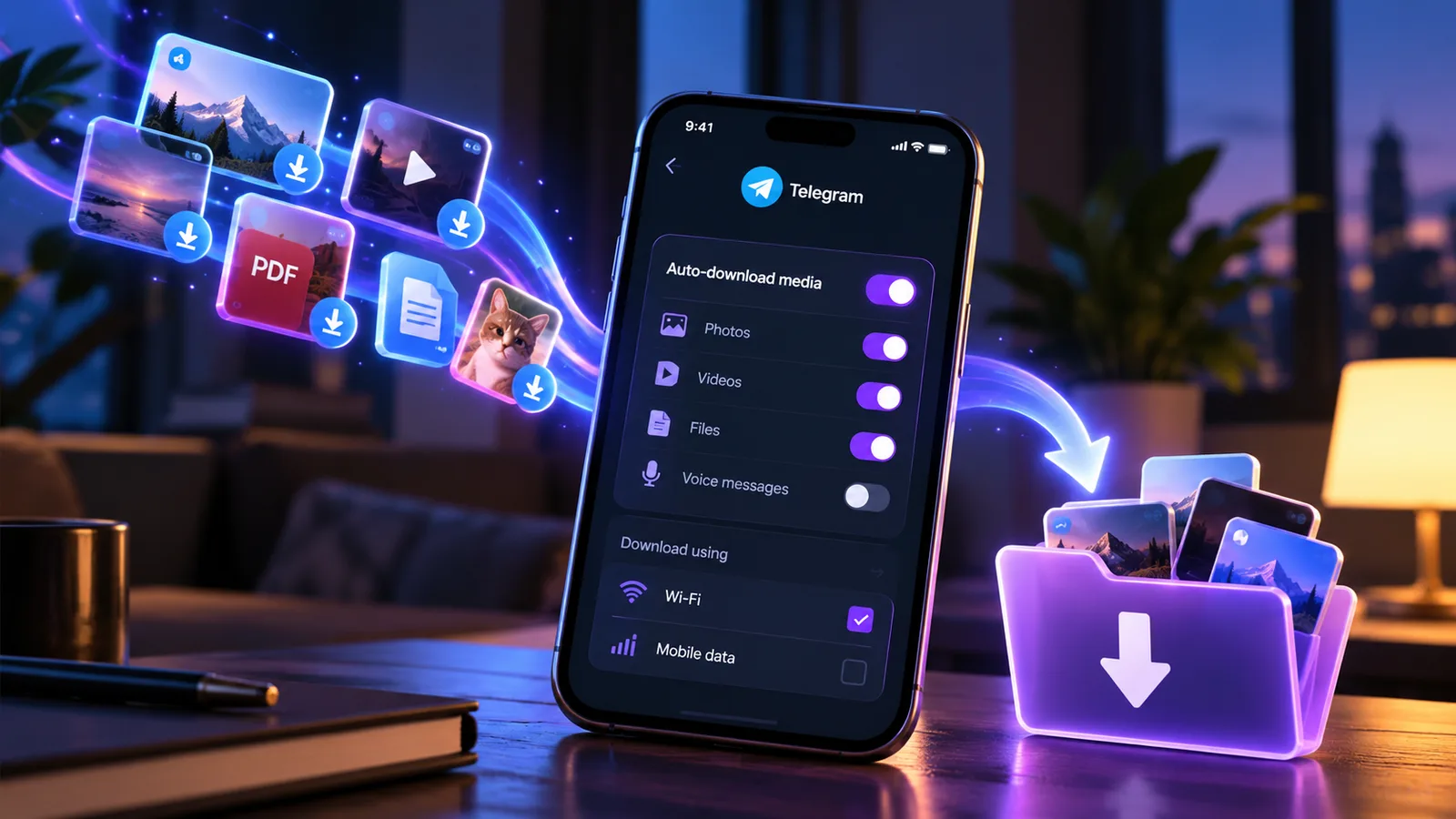
Telegram auto-download settings fetch photos, videos and files before you tap them so they open instantly. On Android they're under Settings → Data and Storage → Automatic media download, set separately for mobile data, Wi-Fi and roaming. On iPhone the same screen has Using Cellular and Using Wi-Fi. Telegram Desktop and Web split them by private chats, groups and channels instead. Turning auto-download off deletes nothing: media simply loads when you tap it. A separate setting, Save to Gallery (Save to Camera Roll on iPhone), is what puts Telegram photos in your photo library.
Where the settings are
| App | Where | Split by |
|---|---|---|
| Android | Settings → Data and Storage → Automatic media download | Mobile data, Wi-Fi, roaming |
| iPhone | Settings → Data and Storage → Auto-Download Media | Cellular, Wi-Fi |
| Telegram Desktop | Settings → Advanced → Automatic media download | Private chats, groups, channels |
| Telegram Web K | Settings → Data and Storage | Media type and chat type |
Each network profile on a phone is independent. Switching off downloads on mobile data leaves Wi-Fi exactly as it was, which is the most common reason people think the setting "didn't work". Telegram also sets the starting defaults by country, depending on how expensive mobile data is there, and can change them remotely, as it explained when it introduced the presets in February 2019.
What's inside each profile (Android and iPhone)
- Auto-Download Media switch: turns that profile on or off entirely.
- Data usage: Low, Medium, High or Custom. Ready-made presets. Change anything below and it becomes Custom.
- Photos, Videos and Files (plus Stories on Android). For each, choose which chats it applies to: Contacts, Private Chats, Groups, Channels.
- Maximum video size and maximum file size. Anything bigger waits until you tap it. Photos have no size limit setting.
- Preload larger videos. Fetches only the first second or two of bigger videos, about 1–2 MB, so they start playing instantly.
- Preload next track (Android): starts downloading the next song while you listen to one.
Voice messages are always downloaded automatically; they're too small to bother with. Reset Auto-Download Settings at the bottom of the screen restores Telegram's defaults.
Telegram Desktop and Web
On Telegram Desktop, each of In private chats, In groups and In channels has its own switch and a box with Photos and Files, a size limit, and Autoplay settings for videos, video messages and GIFs. Desktop is also the only app with per-chat exceptions: lists of chats to always or never auto-download from. On Telegram Web, "auto-download" fills the browser's own storage, not your Downloads folder.
Recommended settings
| If you want… | Do this |
|---|---|
| To save mobile data | Mobile data: Photos on for contacts and private chats; Videos and Files off |
| To save phone storage | Wi-Fi: Videos and Files limited to about 10 MB, or off for channels |
| To avoid roaming charges | Roaming (Android): Auto-Download Media off |
| Everything instant, storage no object | Wi-Fi: High preset |
A size limit is usually better than switching everything off. Small images and short clips still appear instantly, while big videos wait until you actually want them. Turning it all off makes the app feel slow on every single photo.
Remember the difference between data and storage. Downloads on Wi-Fi don't touch your data plan, but they still fill your phone. To check data use, open Data Usage (Android) or Network Usage (iPhone) on the same Data and Storage screen. Both break usage down by type, and Reset Statistics starts the count again.
Auto-download is not auto-save
Two settings that look alike do very different things:
| Setting | What it does | Where the files go |
|---|---|---|
| Automatic media download | Fetches media in advance | Telegram's own cache, which you can clear |
| Save to Gallery (Android) / Save to Camera Roll (iPhone) | Copies downloaded media into your photo library | Your gallery or Photos, outside Telegram |
Save to Gallery is the setting behind "Telegram keeps filling my gallery". Since February 2023 it's set per chat type (Private Chats, Groups, Channels), separately for photos and videos, with a maximum video size and exceptions for individual chats. It's off by default. It only copies media once it has been downloaded, so with auto-download off, a photo is copied when you open it. On older iPhone versions the setting was called Save Incoming Photos.
Clearing Telegram's cache doesn't remove those gallery copies; delete them in your gallery app. More on what's taking the space in Telegram storage full.
Still using data with auto-download off?
- Another profile is still on. Check Wi-Fi and roaming as well as mobile data.
- Streaming and preloading. Android's "Stream videos and audio files", Preload larger videos and Preload next track all fetch data ahead of you.
- Stories. Android has its own Stories toggle under each profile.
- Calls. Use the "Use less data for calls" option on the Data and Storage screen.
- Tapping a video. Opening one downloads it whatever the settings say.
- Link previews. Some iPhone users have reported preview videos loading despite the setting; Telegram has fixed this before, so update the app.
Auto-download fills a cache, not an archive
Everything auto-download fetches is a temporary copy. Telegram's Keep Media setting removes media you haven't opened for a while (by default after a week for channels and a month for groups), and you can clear the cache at any time without losing anything in your account. That makes auto-download the wrong tool if you're trying to keep something.
If you want a copy of a particular video or file that you control, save it deliberately: Save to Downloads or the share menu on a phone, or Save As in Telegram Desktop. In Telegram Web our free extension adds a one-click save button for chats where saving is allowed. A good setup is auto-download set low, plus saving only the few things that matter. If a video won't download at all, see Telegram video not downloading.
Frequently asked
Where are Telegram auto-download settings?
On Android: Settings → Data and Storage → Automatic media download, with separate mobile data, Wi-Fi and roaming profiles. On iPhone: Settings → Data and Storage → Auto-Download Media (Cellular and Wi-Fi). On Telegram Desktop: Settings → Advanced → Automatic media download.
How do I stop Telegram from saving photos to my gallery?
On Android, turn off Save to Gallery under Settings → Data and Storage for private chats, groups and channels. On iPhone, the same section is called Save to Camera Roll. Auto-download settings don't control this.
Does turning off auto-download delete anything?
No. It only changes when media is fetched. Everything stays in the chat on Telegram's servers and loads when you tap it, and anything already downloaded stays until you clear the cache.
Why is Telegram still using data with auto-download off?
Usually because only one profile was changed: check Wi-Fi and roaming too. Streaming, video preloading, stories and calls also use data, and opening a video always downloads it.
What do Low, Medium and High mean?
They're presets for how much is downloaded automatically. Low fetches only small photos; High also fetches short videos and small files. Telegram sets the defaults per country and can change them. Editing any option switches the profile to Custom.
Can I turn off auto-download for one chat only?
On Telegram Desktop, yes: add the chat under Never auto-download in the exceptions. On phones, auto-download is set by chat type (contacts, private chats, groups, channels), though Save to Gallery has per-chat exceptions.
We build TG Downloader, a Chrome extension that saves media from your own Telegram chats in one click — free for 5 downloads a day, no account needed.